Mobile phone print server
Introduction
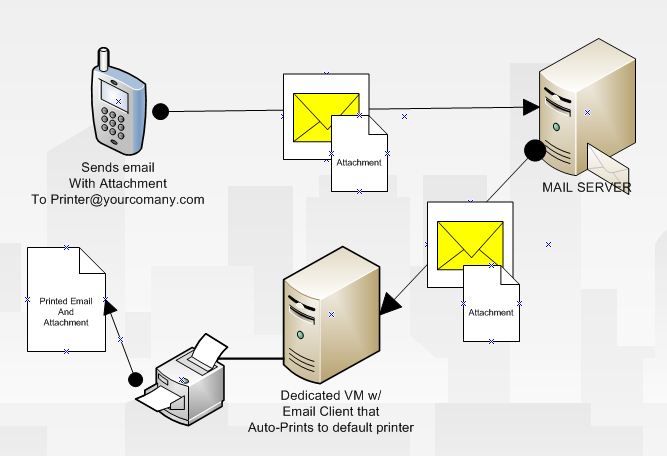
A few years ago I had researched ways to better support remote offices. This lead me to a method to allow mobile devices to print. This solution creates a print server for mobile devices. Anything that can send an email can print. All security concerns will be addressed in this document. This page shows you how to make a Email Printer Server (EPS) using simple outlook rules and a VM.
How it works
- A windows Virtual Machine (VM) is set up with the correct print driver for a printer.
- The printer is then set as the default on the VM.
- The VM is configured with default print friendly applications.
- Outlook is configured on the VM with an email account. Exampleprinter@yourdomain.com.
- Outlook is then configured with 3 rules; Print, Send Confirmation Messages and Delete.
- Outlook is configured to auto open attachments.
- Outlook is configured to print attachments.
Benefits
- Anything that can send an email can print.
- No print drivers on the mobile device.
- It is easy to setup.
Drawbacks
- These are client side rules. The EPS must be on, logged in and outlook open.
- Untested in the enterprise. I did a POC in my personal lab.
Setup Details
Windows Setup
The first thing you need to do is install a printer on the windows system you are going to use as a EPS. Configure windows to open attachments with printer friendly applications. For example PNG files open by default with Windows Photo Viewer. The problem is that has a dialog box when you print.
Example of this problem:
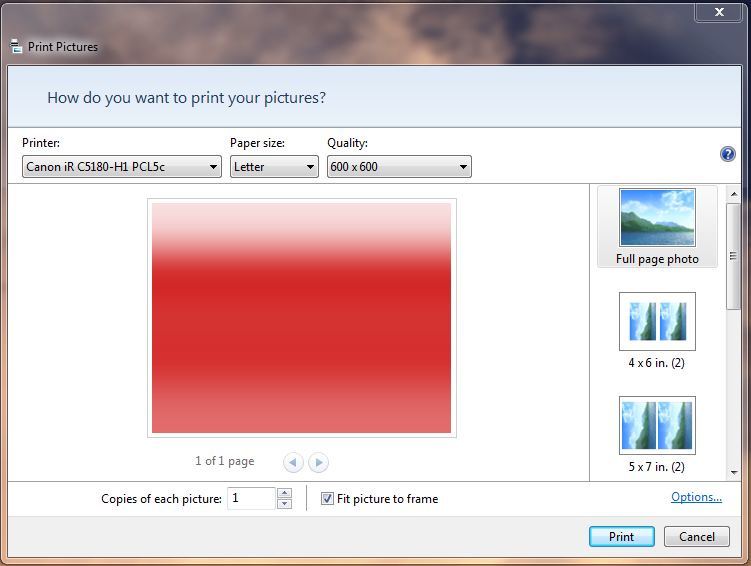
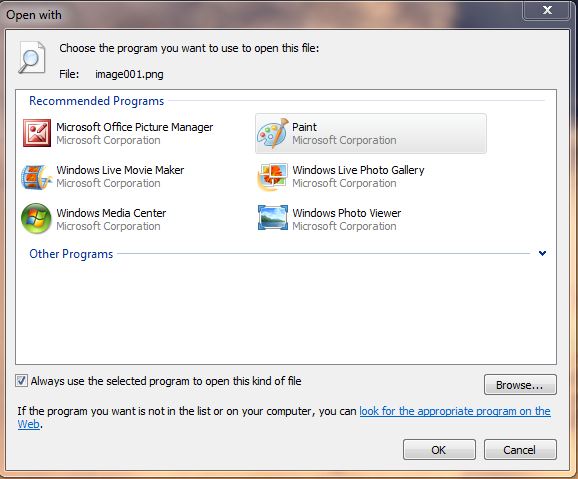
Dialog boxes like this will prevent the print job from going to the printer. For each attachment type you need to set a "printer friendly" application. In this case I changed PNG files to open with paint. Paint does not have a dialog box when you print to the default printer. You can test this by right clicking a file and “print.”
Example:
Outlook setup
First Outlook needs to be configured with an email account. Then you need to create a rule to do three simple things. The first part of the rule will auto-print anything that has “*print*” in the subject line. This will prevent any spam from auto-printing. The next part of the rule sends a confirmation email. For Outlook to send a confirmation a must be created template first. Making a template is easy; open a new email, type whatever you want and save as an oft file.
Here is an example of a template:
Here is an example of the rule.
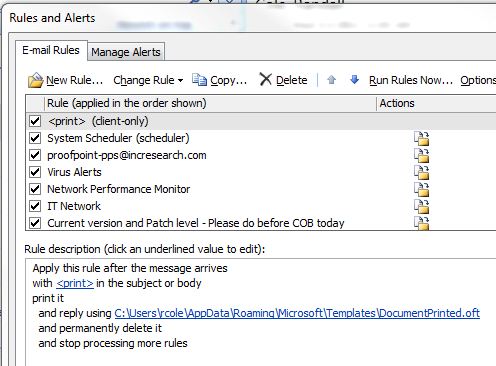
Outlook to Open and Print Attachments:
For security reasons Outlook can’t auto open and print files. You need to enable outlook to auto open files for this to work. To do this you must give the account admin rights (you can and should remove this later) open outlook by right clicking and “run as admin.” Then you need to open each file type and remove the check box.
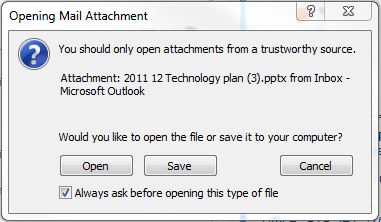
Close outlook, remove admin rights. Log out and long back in.
To Print Attachments
Outlook needs to print attachments for this to work. This is not on my default. Open outlook, chose file print, then check the box to “print attached files.”
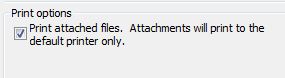
This setting is persistent.
Security Issues
To prevent any security problems you can
PrevPrevent the email account from receiving emails from outside your domain.
The use of <print> in the subject line should stop all spam from printing.
The email account can be configured not to send any outbound emails